If your Epson EcoTank printer suddenly stops printing and displays “Service Required” or “A printer’s ink pad is at the end of its service life”, your printer is almost certainly not broken. The printer has simply locked itself because its internal waste ink counter has reached its programmed threshold.
Quick answer: This lock can be cleared in just a few minutes using the Epson reset software from your computer. The program reads and zeroes out the counter, restoring full printing functionality. However, resetting the software counter does not empty the physical felt sponge pads underneath. If the pad is heavily saturated, pad cleaning, physical replacement, or an external waste bottle is required.
Download Epson Reset Program
Windows compatible. Free file download; a reset key is required to perform the reset.
Installation and activation support: WhatsApp +90 533 053 45 41
Bu hata neden çıkıyor?
Epson inkjet printers expel a small quantity of ink during every printhead cleaning cycle and before printing sessions. This waste ink is directed into felt pads (waste ink sponges) situated in the base of the printer. The printer tracks estimated ink accumulation via an internal digital counter. Once this counter reaches the manufacturer limit, firmware intentionally locks the printer to prevent liquid waste ink from overflowing onto surrounding furniture.
Therefore, this message is almost never a hardware breakdown, but a programmed safety lockout. In printers subjected to heavy use or frequent printhead cleanings, this counter limit is reached much faster.
Hatanın belirtileri
- “Service Required”, “Maintenance Required”, or “Service Needed” messages on the printer LCD or computer monitor
- “A printer’s ink pad is at the end of its service life” or “Parts inside your printer have reached the end of their service life” alerts
- Alternating or simultaneous blinking of power and paper LEDs on screenless models
- The printer boots up and completes initial self-checks, but rejects all incoming print jobs
For a complete diagnostic breakdown of these indicators, see our Epson Service Required Error Guide.
Programın özellikleri
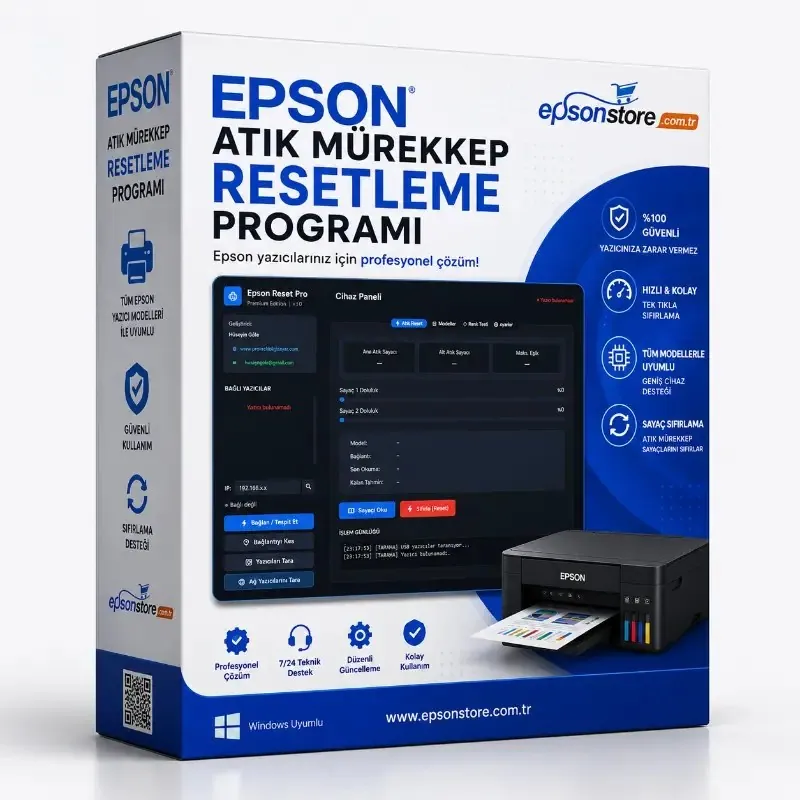
The Epson Reset Pro interface provides the following functions:
| Feature | Function |
|---|---|
| Find / Connect Printer | Automatically detects USB-connected Epson printers |
| Scan Network Printers | Locates Wi-Fi or Ethernet network printers by IP address |
| Read Counter | Displays saturation percentages for both main and platen waste counters |
| Reset | Zeroes out waste ink counters to remove the “Service Required” lockout |
| Activity Log | Logs diagnostic scanning, counter queries, and reset steps |
The software runs on Windows computers. It supports the vast majority of Epson L (EcoTank), ET, WorkForce, and XP series inkjet printers. Popular models frequently serviced at our workshop, such as the L3110, L3150, L3250, and L3251, are fully supported. Because exact support varies by hardware revision, check that your model is recognized in the device list after installation.
Adım adım kullanım
- Download the software. Use the “Download Program” button above to save the file from Google Drive to your PC.
- Connect the printer. Turn on the printer and connect it directly via USB cable if possible. For networked printers, ensure the PC and printer reside on the identical subnet.
- Run the utility. If Windows SmartScreen prompts an alert, click “More info” and select “Run anyway”. Only do this for files downloaded directly from our verified links.
- Detect the printer. Click the “Connect / Detect” button. For network printers, select “Scan network printers” or enter the printer IP address manually.
- Read the counter. Click “Read Counter” to inspect the current saturation values of the main and secondary waste counters. A counter at 100% is the cause of the lockout.
- Perform the reset. Enter your valid reset key and press “Reset”. Do not turn off the printer or disconnect cables while the writing process executes.
- Restart the printer. When instructed by the software, power the printer off and back on. The lockout warning clears and the printer returns to ready status.
If you encounter difficulties during installation or activation, contact our WhatsApp technical support line (+90 533 053 45 41).
Sıfırlamadan önce mutlaka bilmeniz gerekenler
Resetting the counter does not empty the physical pads. The software resets the digital numerical log in memory, but the felt sponges remain physically saturated. On the first reset, the factory sponges usually still retain enough remaining absorbency. However, if the counter has been reset a second or third time, the felt has likely reached critical saturation.
Do not rely solely on software resetting if you observe any of the following:
- Ink stains or puddles beneath the printer, on your work desk, or along paper margins
- The waste ink counter has already been reset previously
- The printer operates in a high-volume commercial environment (offices, copy shops, schools)
In these scenarios, three practical solutions exist: washing/drying the felt sponges, replacing them with a brand-new maintenance pad box, or installing an external waste ink tank that routes liquid discharge safely into an external bottle. Compare these methods in our Epson Waste Ink Pad Replacement Guide.
Avoid unverified “free Epson reset” utilities. Pirated cracks and illicit key generators circulating online frequently carry trojans and malware. Furthermore, applying an adjustment program built for a different model revision can corrupt mainboard EEPROM calibration data. Only download software from our verified official links.
Program mı, servis mi?
| Situation | Recommended Action |
|---|---|
| First-time “Service Required” error, no ink leaking beneath machine | Software reset is sufficient |
| Counter was previously reset once, error has now reappeared | Software reset + pad cleaning or external bottle installation |
| Ink traces or leaking visible underneath the printer casing | Inspect/replace physical felt pads first, then execute reset |
| Error persists after reset, or unrelated error LEDs continue blinking | Likely an underlying hardware fault; bring to service center |
If you are located in Antalya, you can bring your printer directly to our workshop in Muratpaşa. We provide professional felt cleaning, absorbent pad replacement, and digital counter resets on-site; following initial diagnostic inspection, we advise the optimal solution for your device. For other printer issues, explore our comprehensive Epson Printer Troubleshooting Guide.
Frequently Asked Questions
What does the Epson reset utility do?
Epson inkjet printers have an internal counter that tracks waste ink accumulated during printhead cleaning and normal printing. When this counter hits its factory limit, the printer displays 'Service Required' or 'A printer ink pad is at the end of its service life' and halts printing. The reset program reads this counter from your computer and resets it to zero, allowing the printer to resume printing.
Which Epson printer models does the program support?
The program supports most Epson inkjet printers across the L (EcoTank), ET, WorkForce (WF), and XP series. Because exact compatibility varies by specific revision, verify whether your printer appears in the device list after installation, or ask us with your model name on WhatsApp before purchasing a key.
Does resetting the software counter clean the physical waste pad?
No. The program only clears the digital counter in software; the felt sponges underneath the printer remain physically saturated with liquid ink. If the counter has been reset multiple times or you notice ink leaking beneath the machine, felt cleaning, pad replacement, or an external waste ink tank is essential to prevent ink from spilling onto your desk and internal electronics.
Is the software free?
The program installer file is free to download. To perform the reset routine, an activation reset key is purchased via epsonstore.com.tr; installation guidance and activation support are provided via our WhatsApp line.
Windows displays a SmartScreen warning when opening the program, what should I do?
Windows SmartScreen may display 'Windows protected your PC' for newly downloaded or uncommon service utilities. If you downloaded the file through our official link on this page, click 'More info' and then select 'Run anyway'. Avoid running random 'free Epson reset crack' executables downloaded from untrusted websites.
Can the program detect printers connected over the network?
Yes. The program automatically scans USB-connected printers; for Wi-Fi or wired network printers, you can use the 'Scan network printers' option or connect directly via the printer IP address. If you encounter detection issues, using a direct USB cable during the reset process is the most reliable approach.