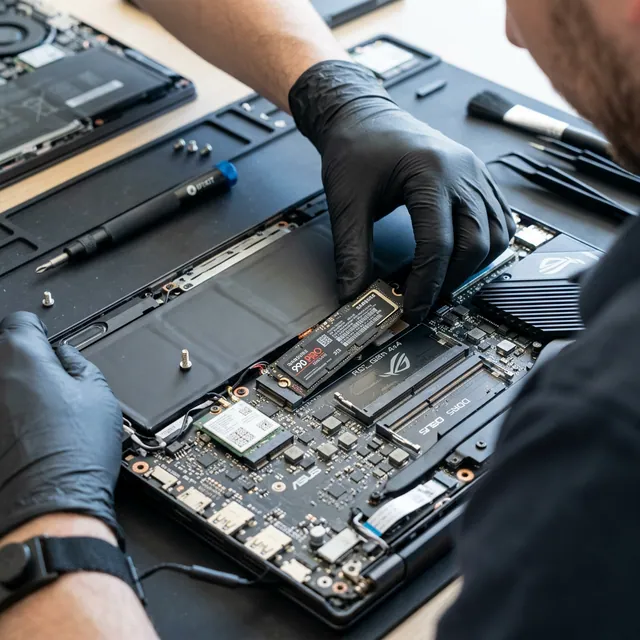
If you have to wait two to three minutes every morning for your computer to boot, programs frequently display “Not Responding” banners, and copying large files slows your system to a crawl, the primary bottleneck is almost certainly an outdated mechanical hard drive (HDD).
Why SSDs Revolutionize System Speed
The contrast between mechanical storage and flash memory is dramatic:
- Mechanical HDD: Physical magnetic platters spinning at 5400 RPM with a mechanical read arm—inevitable physical seek latency.
- Solid State Drive (SSD): High-speed NAND flash memory with zero moving parts—instantaneous data access.
Performance Benchmark Comparison
| Operation | 5400 RPM Laptop HDD | 2.5” SATA SSD | M.2 NVMe PCIe 4.0 SSD |
|---|---|---|---|
| Windows Boot Time | 50–90 seconds | 15–20 seconds | 7–10 seconds |
| Chrome / Browser Launch | 8–15 seconds | 1–3 seconds | Instantaneous (under 1s) |
| Large File Transfer | 60–80 MB/s | 450–520 MB/s | 3,500–7,000 MB/s |
| Random 4K Access | ~0.8 MB/s | ~35 MB/s | ~150–250 MB/s |
Which SSD Form Factor Fits Your Machine?
1. 2.5-Inch SATA SSD
- Peak Speeds: 500–550 MB/s read and write.
- Compatibility: Direct drop-in replacement for any laptop or desktop with an existing 2.5-inch hard drive bay.
- Best For: Upgrading laptops made prior to 2019 or providing massive, affordable secondary storage.
2. M.2 SATA SSD
- Peak Speeds: SATA III speeds (approx. 500 MB/s) in a miniature “gum-stick” form factor.
- Best For: Ultra-thin laptops featuring early-generation M.2 SATA slots.
3. M.2 NVMe SSD (PCIe Gen 3 / Gen 4)
- Peak Speeds: 2,000 to 7,400 MB/s.
- Compatibility: Requires an M.2 slot wired to PCI Express lanes on modern motherboards.
- Best For: Modern laptops, gaming rigs, 4K video editing, and maximum responsiveness.
Recommended Capacity Guidelines
| Daily Usage Profile | Recommended SSD Capacity |
|---|---|
| Basic web browsing, office spreadsheets, schoolwork | 500 GB |
| Multitasking, photo editing, moderate media library | 1 TB |
| Modern AAA gaming, 4K video production, large databases | 2 TB+ |
Painless Upgrade: Data Migration via Cloning
At Protech Bilgisayar, upgrading to an SSD does not mean starting from scratch:
- We connect your existing drive to an industrial hardware cloner.
- Your entire operating system, installed applications, licensed software keys, and personal folders are mirrored to the new high-speed SSD.
- Your old HDD can be converted into a portable USB external drive or installed into the optical bay using a caddy for secondary backups.
Same-Day SSD Upgrades in Antalya
Upgrade your desktop or laptop in 1 to 2 hours at our workshop in Muratpaşa, Antalya. All SSD units installed include a 90-day service warranty alongside manufacturer component warranties.
Contact our team at 0850 220 4323 or WhatsApp at 0533 053 45 41. Explore our computer repair services in Antalya.
Frequently Asked Questions
Why does upgrading from an HDD to an SSD make such a huge difference?
Mechanical hard drives rely on spinning platters and moving actuator arms with mechanical latency of 10–15 milliseconds. Solid State Drives (SSDs) use flash memory chips with zero moving parts and near-instant access times (<0.1 ms). This makes Windows boot in 10–15 seconds and programs launch immediately.
What is the speed difference between SATA SSD and M.2 NVMe SSD?
A 2.5-inch SATA SSD reaches speeds around 500–550 MB/s (approx. 5x faster than an HDD). An M.2 NVMe PCIe SSD achieves speeds between 2,000 and 7,000 MB/s (up to 30x to 50x faster than an HDD). NVMe requires an M.2 PCIe slot on the motherboard.
Will my personal files, programs, and Windows license be lost during an SSD upgrade?
Not at all. At Protech Bilgisayar, we perform bit-level drive cloning. Your operating system, desktop setup, browser bookmarks, software licenses, and personal documents are copied to the new SSD, requiring zero reinstallation.
What SSD capacity should I choose for daily use in 2026?
For basic web browsing and office documents, 500 GB is the recommended entry point. For modern gaming, video editing, or graphic design, 1 TB or 2 TB is strongly advised, as modern operating systems and games require substantial storage.